
Spreadsheet editor
Build spreadsheets with formulas, save as XLSX or CSV.
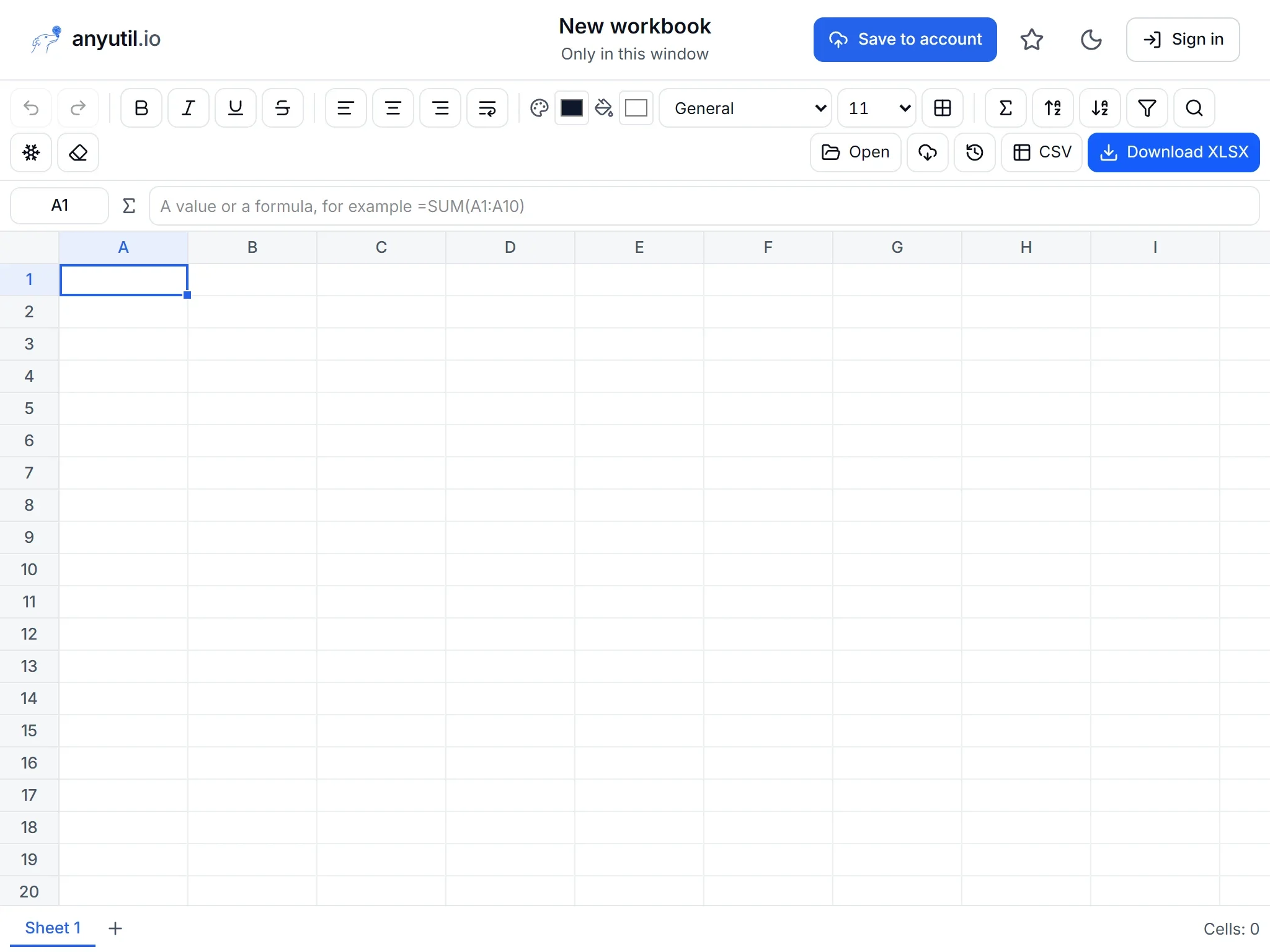
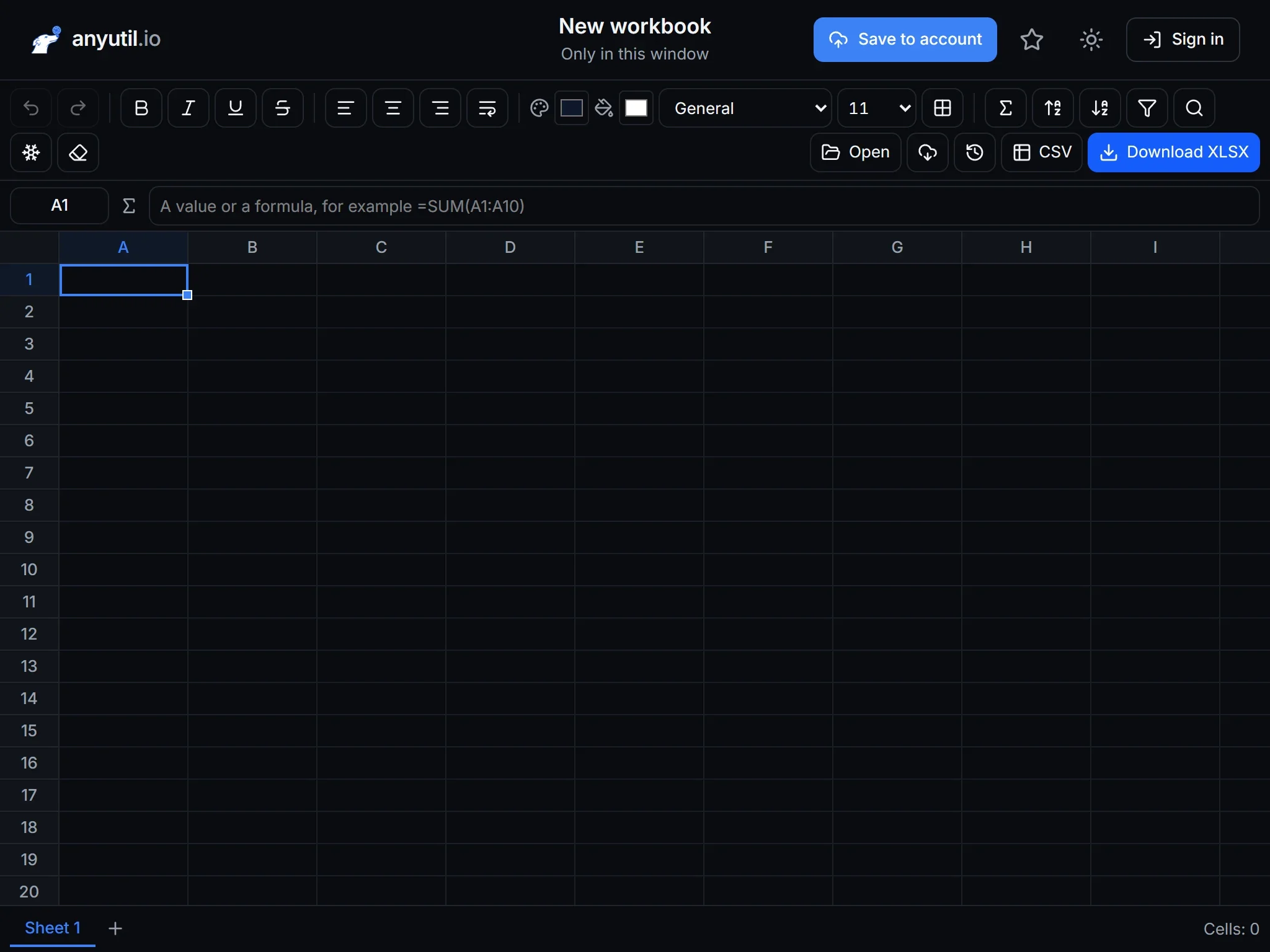
Open full screen
Runs in your browser, your files stay on your computer.
- Runs right in your browser
- Free, no sign-up
More about Spreadsheet editor
Spreadsheets in the browser, without Excel
Open the editor with the button above. Type straight into the cells; a formula starts with an equals sign and is calculated the moment you confirm it. Download the finished workbook as XLSX for Excel, LibreOffice Calc and Google Sheets, or as CSV. You can also open a workbook you already have: XLSX, ODS from LibreOffice or CSV.
- Formulas: over 130 functions from
SUMandAVERAGEtoVLOOKUP,XLOOKUP,SUMIFSandIF, including working days and the date functions. Arguments are separated with a semicolon. - Formatting: bold, italic, underline, text and fill colour, font size, borders, alignment, text wrapping, number formats including currency, percentages and dates, and merged cells.
- Conditional formatting: cells colour themselves by value, such as amounts over a limit in red, overdue dates, duplicates or text containing "cancelled". The grid shows the result as you set up the rules.
- Working with the table: sorting, by several columns too, a filter row right above the columns, find and replace, AutoSum, inserting and deleting rows and columns, dragging column widths, double-clicking a column edge to fit the content, freezing panes.
- Drop-down lists, comments and links: allow only values from a list in a cell, add a note to a cell and turn text into a link to a website or an email address.
- Printing, PDF and charts: print the sheet or save it as a PDF fitted to the page width, with the header repeated on every page. Open the selected data in the Chart from a table tool with one click.
- Filling series: drag the handle in the corner of the selection to continue numbers, dates, "Item 1", weekdays and months; formulas shift as when copied. While typing a formula, click the grid to insert a reference to a cell or a dragged range.
- Multiple sheets: add, rename and move sheets. A formula can point at another sheet, for example
=Data!A1*2. - Editing on a phone: stretch the selection by its blue corner handles, double-tap a cell to type, and hold a finger to open the row, column or sheet menu.
Work in progress is kept in the browser's storage, so it survives closing the tab. Nothing is sent to a server.
Keyboard shortcuts
- Arrows move the selection, Shift extends it, Ctrl + arrow jumps to the edge
- Enter or F2 starts typing into a cell, Tab confirms and moves across, Delete clears the contents
- Ctrl + C, X, V copy and paste with formulas, Ctrl + Z undo
- Ctrl + B, I, U formatting, Ctrl + S saves to your account, Ctrl + Shift + S downloads the XLSX
- Ctrl + F find, Ctrl + H replace, Ctrl + D and Ctrl + R fill the selection down and right, Alt + Enter a new line inside a cell
- Shift + Space selects the row, Ctrl + Space the column, Ctrl + + and Ctrl + − insert and delete rows or columns, Ctrl + ; inserts today's date
- Ctrl + K inserts a link, Shift + F2 a comment, Alt + ↓ opens a cell's drop-down list, Ctrl + P prints or saves a PDF
Frequently asked questions
Will the result open in Excel?
Yes. The downloaded file is an ordinary XLSX in the Office Open XML format, values, formulas, number formats, colours, merged cells, comments, links, drop-down lists and conditional formatting included.
Is any data sent to a server?
No. The calculations and the file assembly both run in your browser, so you can open a payroll or revenue table even on a machine nothing is allowed to leave.
Which functions does the editor know?
Over 130 functions: maths (SUM, AVERAGE, MIN, MAX, ROUND, SUBTOTAL, SUMPRODUCT), logic (IF, IFS, SWITCH, IFERROR, IFNA), text (LEFT, MID, LEN, SUBSTITUTE, TRIM, TEXTJOIN, TEXT), lookup (VLOOKUP, XLOOKUP, XMATCH, MATCH, INDEX), conditional totals and counts (SUMIF, SUMIFS, COUNTIFS, AVERAGEIFS, MAXIFS, MINIFS), statistics (LARGE, SMALL, RANK, MEDIAN, STDEV) and dates (TODAY, DATE, EDATE, EOMONTH, NETWORKDAYS, WORKDAY, DATEDIF, WEEKNUM). An unknown function shows up as the #NAME? error.
Can it handle a large table?
The grid renders only the visible cells, so thousands of rows scroll smoothly. Bear in mind the workbook lives in the browser's memory though: for hundreds of thousands of rows a database is the better tool.
What can the editor not do?
Pivot tables, macros, dynamic-array functions (UNIQUE, FILTER, SORT), OFFSET and INDIRECT. Charts are not embedded in the workbook: they are made in the Chart from a table tool as a PNG or SVG image. Use Excel or LibreOffice Calc for the rest; a file from our editor opens in them normally.
How do I print the sheet or save it as a PDF?
Use the print button or Ctrl + P. Choose the whole sheet or just the selection, landscape orientation, fitting to the page width, gridlines and a repeated header. To get a PDF, pick "Save as PDF" in the browser's print dialog.
Which decimal separator is used?
The English convention: a decimal point and a comma between thousands. When typing we accept both, so 1234.5 and 1 234,5 end up as the same number.